2026.07.21 - Maya
Scalable user interface.
- ADDED Scalable User Interface Use Ctrl and ± to scale your UI, like in a browser
- ADDED Copy/Paste Snap simulation to animation and vice versa with hotkeys
- UPDATED Olympic Manikin The default Manikin asset is now much more agile. :)
- ADDED Analytic Record Faster (than Match Transforms) and more precise recording method
- ADDED Edit In-place Manipulate the simulation where Maya is currently at
- FIXED Viewport Responsiveness Performance without fans making noise
- FIXED Rendering Performance Faster viewport rendering, that's a win
- FIXED Rendering Crash Multiple viewports no longer mean BANG!
- FIXED Quality of Life Life, but better!
- FIXED References and Start Frame Saving your work on a frame other the start frame? Yes please.
- FIXED Ctrl + Y Hotkeys in general has been much improved
- FIXED Next and Previous Key You can now step between keyframes in Pose Mode
- FIXED Load Physics with Negative Scale More resilient behaviour from Load Physics
Scalable UI
They say size doesn't matter. But what if you are nearsighted?
Ever wanted text and icons to look bigger? Or even smaller? Now you can.
Ctrl++to increase the sizeCtrl+-to decrease the size
Moving Between Monitors
This also means that Ragdoll will now automatically adjust its scale when moving Maya between displays with different resolutions and/or DPI scale. On any platform.
Copy Paste
You can think of Ragdoll as a clipboard, where "copy" means to bring a Maya pose into Ragdoll, and "paste" would bring the simulation back onto the animation.
Workflow Example
Here's a quick example of how this can work in practice, to tune and author a few new poses.
Next/Previous Keyframes
Press , and . for previous and next keyframes, like you normally would in native Maya. Ragdoll will query keyframes on Maya control assigned the selected Marker and step between them.
Olympic Manikin
A couple of months of Yoga and Pilates has made our Manikin is now a lot more flexible, capable of achieving all manners of poses!
Wider Limits
You can achieve the same on your characters by widening the Limit Range attribute, no Pilates required.
Edit In-place
You'll now notice the Ragdoll UI remains in place upon exiting the Manipulator, preserving work done until you return, primarily poses.
Previously, whenever you enter the Manipulator, Ragdoll would give you a clean slate. However, what if you wanted to manipulate the scene where it was currently simulated?
For example..
- Simulate
- Pause at any time
- Pose the simulation in-place
- Return to playback mode to resume simulation
You can now step in and out of the Manipulator without disrupting the work going on in there.
Pin Mode
Use the little pin icon to make Ragdoll automatically return to Playback mode upon exiting the Manipulator, like it used to do in previous releases.
Viewport Responsiveness
The previous release made posing smooth, beyond the previous 30 FPS hardlocked limit. But it also unleashed your fans at full blast. This full-on rendering could, in some cases, take precedence over other Maya events, such as closing Maya via the little X icon on the window, but Maya was too busy rendering Ragdoll to execute.
This release manages to keep 60 FPS simulation rate while posing, without blocking events and without consuming so much of your precious fan effort and energy bill. Win!
Analytic Recording
Ragdoll offered two methods of recording your simulation back onto your controls.
- Constraints
- Match Transform
Constraints physically create Maya constraints between simulation and animation and bake keyframes onto your controls. It is the most performant and robust method of recording, so you should likely keep using this method.
But, if for whatever reason you cannot - e.g. your company incorporates custom transform nodes into your rig pipeline - then you had the option to instead use an approach based on cmds.matchTransforms. It's similar to constraints except there are no nodes involved, no connections need to be created, and no evaluation is made as a result of them.
The problem with the latter, however, is performance. Transferring just a single pose from simulation -> animation could take upwards of half a second, which when you are recording 500+ frames of simulation can be come quite the bottleneck.
With this release, you get one more option.
- Analytical
The analytic method tells Ragdoll to compute the local translate and rotate values for each control, given the worldspace translate and rotate coming out of the simulation. No temporary constraints or joints are created in the process which should be both faster and more precise.
Snap, Record and Rotate Pivot
Previously, if you were limited to recording via Match Transforms, you were also limited to rigs with no Rotate Pivot. It wasn't taken into account, which made recording unreliable.
In this example, all controls reside at the origin, (0, 0, 0), with their Rotate Pivot at their visual location. A real challenge for previous-Ragdoll.
This is now handled correctly.
Rocket Girl Attribution
The rig is called "Rocket Girl" and can be found here:
Snap, Record and Scale
If your rig had negative scale, odds are you also experienced issues recording onto it.
The above rig had one other complication; all of the left-hand controls have a negative scale on the X-axis.
This is now also handled correctly, via both Match and Analytical methods.
Quality of Life
Life, but better!
References and Start Frame
Saving and opening your scene on a frame other than the preferred simulation start frame could result in this.
Which is not a good look. It happened because at first, Maya will load the scene, including Markers and then load the referenced rig. Until the reference is loaded, Maya will have created a temporary "placeholder" node which then connects to each Marker. Because these are placeholder nodes, their values are all zero, causing all Markers to appear at the origin.
When Maya then brought the real nodes in, the updated connections did not signal to Ragdoll that anything had changed. To us, this seems like a bug, but it happens consistently throughout all versions of Maya. So, a long-standing bug. 
In any case, this is no longer an issue, and any scene - with or without references - now open correctly regardless of what frame you saved it on.
Rendering Performance
Up to 50x faster rendering on dense scenes.
In a scene with 600,000 polygons - i.e. 600 spheres - you would previously see these numbers.
Before
After
Rendering Crash
Anyone using multiple viewports could sometimes, on rare occasion, experience a crash during resize of one of these panels.
The obvious issues have now been patched up, and if something should happen you will now be given a suitable message and no crash. Ragdoll would hold off rendering until you've investigated and preferably sent any log messages - either from Maya's Script Editor or Output Window or Terminal - to us.
If you do, include the output of this command; it will help narrow down whether hardware is involved or not.
dmesg | grep -i xid
Viewport Resize Hiccup
Unrelated to the above, resizing one viewport could cause the size of Ragdoll's UI in another viewport to change.
This has now been fixed.
Bounding Box Crash
Sometimes, on rare occasions, Maya may attempt to query the bounding box of your solver prior to the solver having had a chance to evaluate. If so, it would be attempting to access bad memory which may or may not cause a crash.
No more!
Natural Hotkeys
Ragdoll used to occupy your entire keyboard whilst using the Manipulator, but now only occupies keys it actually cares for, minus a handful of keys you'd rather keep to yourself.
Ctrl+Yto redoCtrl+Oto open a new sceneCtrl+Nto start a new sceneCtrl+1234.. to toggle viewport elementsAlt+1234.. to toggle viewport elementsSpaceto maximise a viewport- A few more
Load Physics with Negative Scale
Export an asset whose controls are mirrored by negative scale, and Load Physics is OK with that.
Before
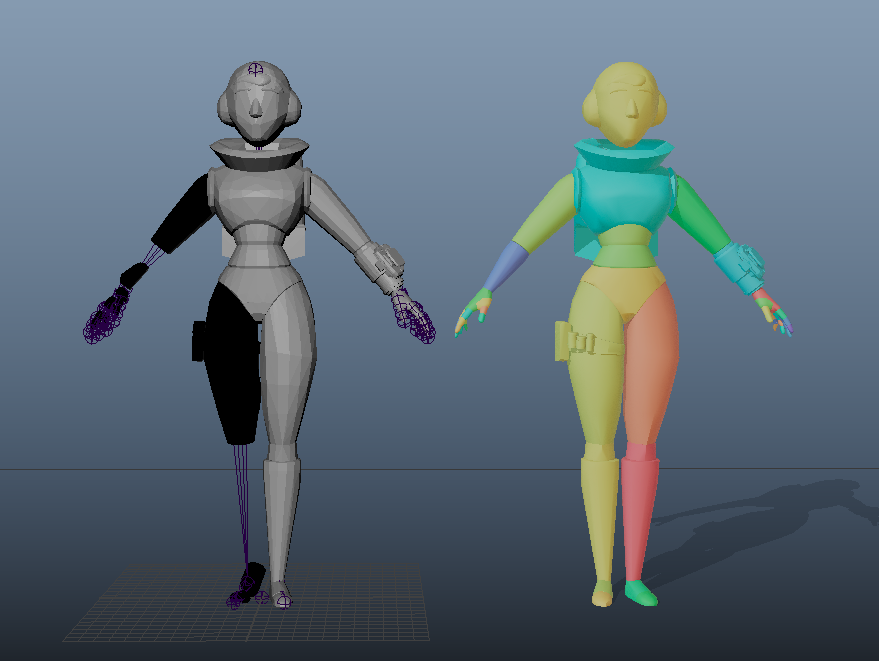
This has now been fixed!
Numeric Keys and Ctrl
Whilst in the Manipulator, your numeric keys 1-9 (including 0) are swallowed by Ragdoll for use as gizmo hotkeys. But sometimes, you need those keys. Like when showing or hiding polygons or NURBS curves from within the Maya viewport.
Pixel Perfect Posing
There was a jolt on the first frame of posing.
No longer.
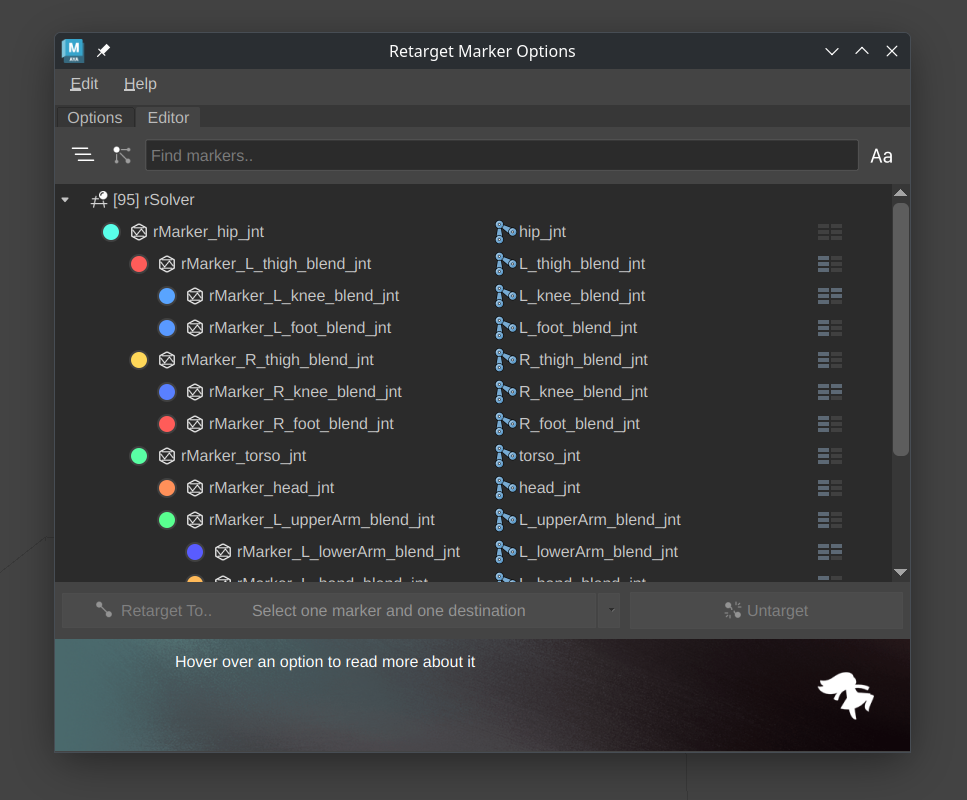
Retargeting UI
Under certain conditions, the retargeting UI could end up without any items. This has now been fixed.
Import of "Enabled"
The enabled attribute determines whether or not a Ragdoll node should participate in simulation, without physically deleting the node. It used to be exported as part of your .rag files but were left out since 4.0.
This has now been fixed.
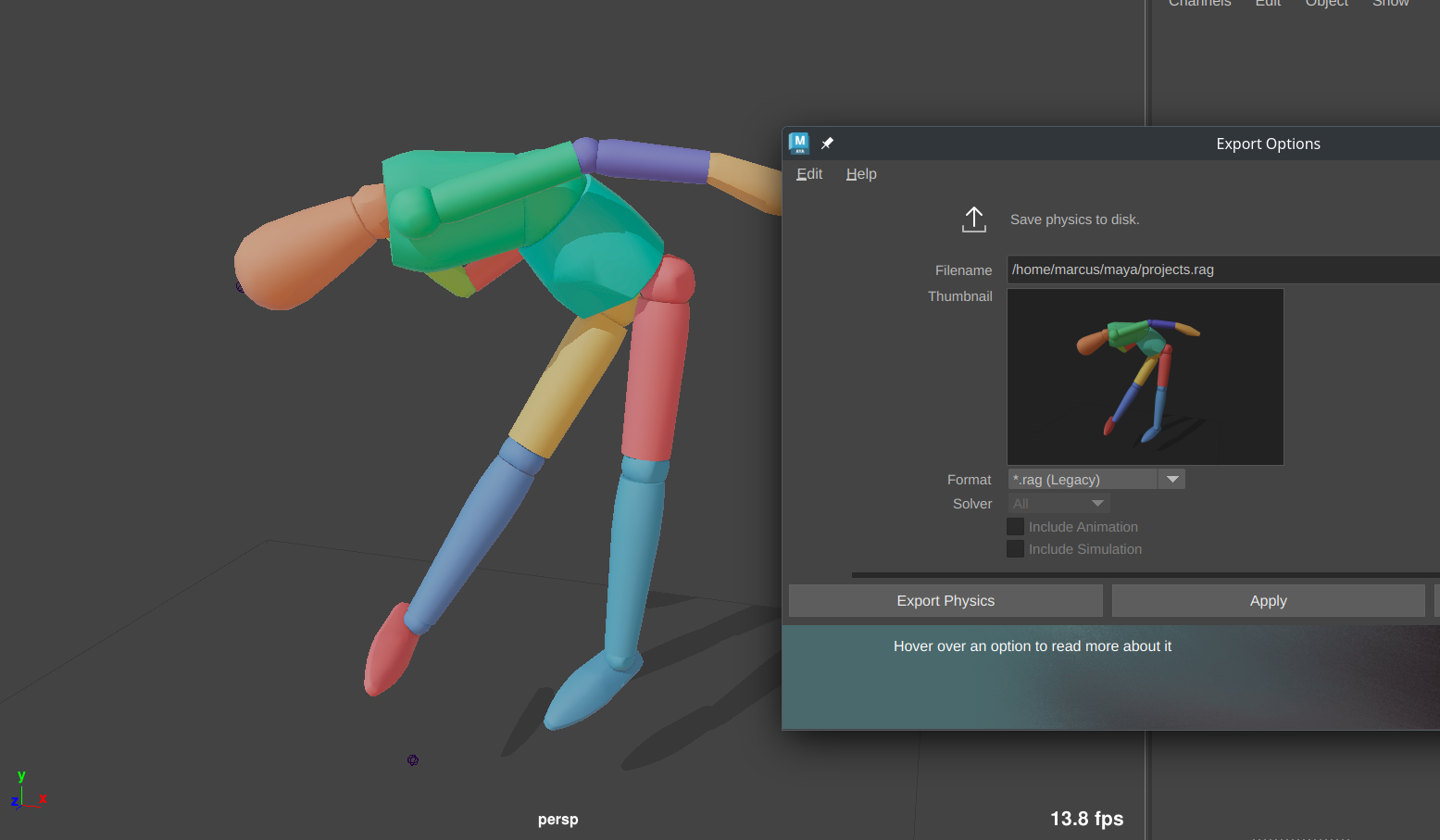
Missing Export Thumbnail
Exporting your .rag file could leave your file without a thumbnail.
This has now been fixed.
Bonus
As an added bonus, it now captures only Ragdoll, leaving other items of your Maya viewport out of the picture. Helps protect confidential information and just generally looks better for a thumbnail.
Missing Geometry Offset
Your exported .rag file could exclude the "Maintain Offset" option you tick when replacing a mesh. Resulting in odd-looking imported or loaded .rag files.
This has now been fixed.
Last Release
This was technically part of one of the latest patches, but for completeness since the last release notes.
Eyesore on Import Physics
Sometimes, you would get Maya's angry red banner upon closing the Import Physics UI. No more!
Eyesore on Activating Licence
New users activating their licence would get that same angry red banner, at no fault of their own.
// Error: Invalid syntax
This has now been addressed.
Network Adapters and Floating Licences
Node-locked users were at one point susceptible to the dreaded "Error 28" a.k.a. "Disabled Network Adapters" error.
Ragdoll got patched up months ago, but users of floating licences still had this problem. This has now been patched up.
Restore Gizmo Scale
A minor issue was addressed, whereby the Restore gizmo would render the unscaled version of your rig, if your rig was scaled. This has been fixed.